Write time your way.
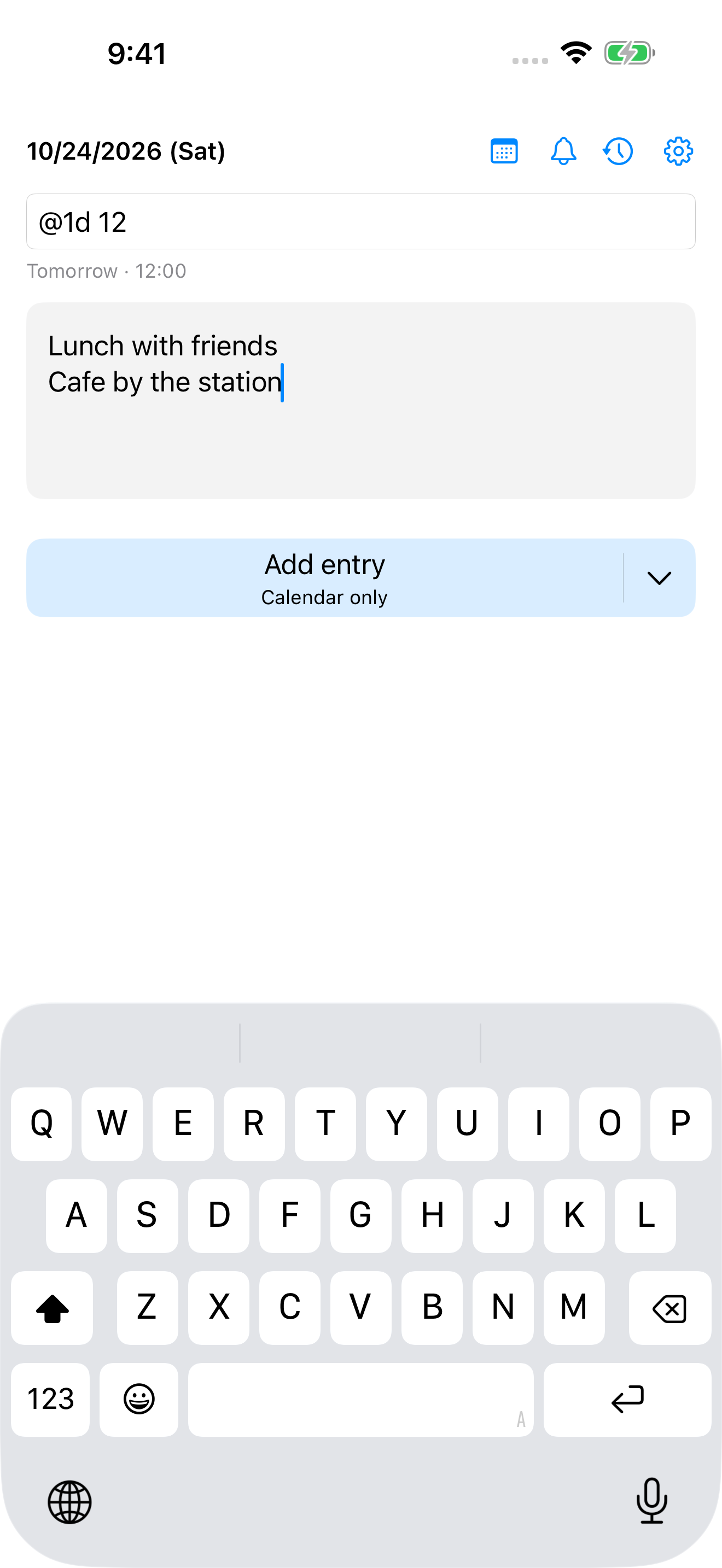
Use a short hour or a compact time. The preview shows Today, Tomorrow, or the actual date before you save.
 Yotei
YoteiMac, iPhone, iPad & Apple Watch
A date, a time, and a few words. Add a plan to your calendar without losing your train of thought.
App Store release in preparation
Yotei Quick Entry
Keep the entry simple. Open the details when you need them.
Use a short hour or a compact time. The preview shows Today, Tomorrow, or the actual date before you save.
Tomorrow, two days from now, or next week. Relative dates keep quick plans quick, including across New Year.
Choose a calendar and two alerts. Yotei remembers your choices, with separate alerts for timed and all-day events.
3 steps
Your last 300 added events are in History. Open Calendar to edit them. Clearing Yotei history leaves your calendar events in place.
Try 9, @1d 12, or @1w 930. Leave the time blank for an all-day event.
Recent text appears as suggestions while you type. Choose the calendar and alerts when you need them.
A brief toast confirms the save. The fields clear, ready for the next thought.
macOS
Find the pencil in your menu bar, or open quick entry from any app with Control+Option+Space. Press Control+Command+M in the body field to add the entry.